8 Steps to Music Studio Organization for Teachers, Parent Ready Notes
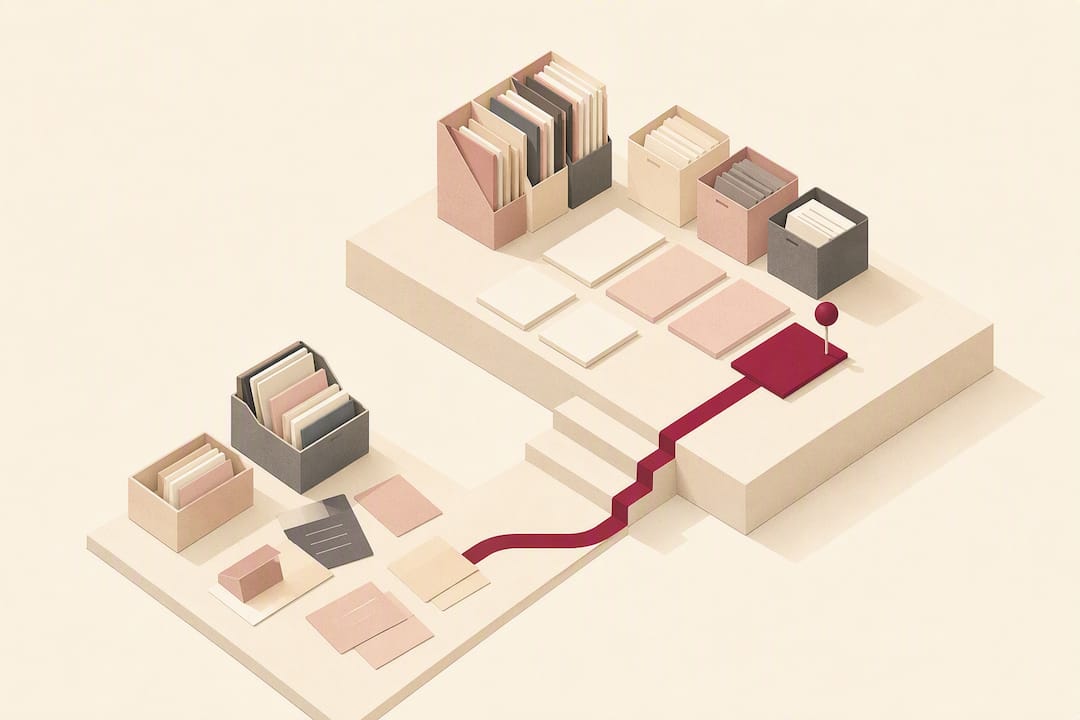
The fastest way to fix music studio organization is to stop juggling five apps and run your roster, scheduling, lesson notes, and billing from one connected workspace. Add templates for onboarding, practice plans, and parent updates, and you turn hours of weekly admin into a routine you barely notice. A tool designed around this idea includes features that turn lesson notes into parent-ready summaries automatically.
TL;DR:
- Automating lesson notes into parent-ready summaries saves time and improves communication, especially when integrated with billing and scheduling systems.
- Setting up a unified workspace with templates for onboarding, practice plans, invoices, and common messages reduces weekly admin hours by automating repeatable tasks.
- Building your studio policies for cancellations, billing, and communication boundaries ensures consistent enforcement and fosters professional relationships.
- Batch your weekly admin tasks into 60 to 90 minutes, including invoicing, confirmations, and planning, with daily urgent checks lasting only ten minutes.
- Organizing physical space and digital files by function and instrument minimizes time waste during lessons and keeps equipment, resources, and backups easily accessible.
Table of Contents
- What Are the Six Core Systems of Music Studio Organization?
- How Do You Set Up an Organized Music Studio in a Weekend?
- Which Automation Sequences Actually Cut Admin Time?
- What Should a Parent-Ready Practice Summary Include?
- How Do Studio Policies Prevent Admin Headaches?
- What Does a Realistic Weekly Admin Routine Look Like?
- Setting Up Your Teaching Space for Efficient Workflow
- How Should You Organize and Maintain Your Equipment?
- How Do You Keep Digital Files and Backups Organized?
- How Do You Organize Teaching Materials and Resources?
- How Do You Track Student Progress and Feedback Over Time?
- How Do You Manage Time Efficiently During Studio Sessions?
- Run Your Studio Like a Small Business Without Losing the Teaching Heart
- Where Allegro Music Studio Fits Into This System
- Sources
- FAQ
What Are the Six Core Systems of Music Studio Organization?
Every well-run studio, no matter how small, depends on six systems working together instead of six separate tools fighting each other.
- Roster management: one place holding every student’s contact info, instrument, lesson time, and history.
- Scheduling: a calendar that handles bookings, cancellations, and makeups without a text-message back-and-forth.
- Lesson notes and practice plans: what happened in the lesson, translated into what the student practices next.
- Billing and invoicing: tuition tracking, autopay, and a paper trail if a payment gets missed.
- Onboarding: the sequence that turns a trial lesson into an enrolled, paying student.
- Parent communication: the channel that keeps families informed without turning into a 24/7 help desk.
The real win comes from the connections between them. A lesson note should flow straight into next week’s practice plan. A confirmed booking should trigger a calendar block and a reminder. When these systems live in separate apps, you’re the one doing the connecting, by hand, every week. A unified workspace or a tightly integrated set of tools does that stitching for you, which is the difference between running a studio and being run by one.
How Do You Set Up an Organized Music Studio in a Weekend?
You don’t need a semester to fix this. Most teachers can rebuild their entire admin system in a focused afternoon, following these eight steps in order.
- Pick your workspace. Choose one platform to hold your roster, calendar, and billing, and set up a cloud backup folder for anything it doesn’t cover.
- Build five templates: an onboarding packet, a lesson-note format, a parent practice summary, an invoice template, and two or three canned communication messages.
- Set your scheduling rules: define your available blocks, how far in advance parents can book, and your cancellation window.
- Configure billing defaults: autopay as the standard, a fixed billing cadence, and a clear late-fee policy.
- Build your intake sequence: trial booking triggers a confirmation, then a reminder, then an enrollment form, then payment setup.
- Load your roster and assign each current student a first practice plan inside the new system.
- Create a naming convention for your template library so nothing gets lost six months from now.
- Send a welcome packet to every family explaining how you communicate, bill, and schedule going forward.
Practitioner guides on starting a private music studio consistently point to this same combination: scheduling structure, payment automation, and communication templates set up before you need them, not while you’re scrambling.
Pro Tip: Build your templates before you touch your roster. Retrofitting a template onto 30 existing students takes three times longer than starting with a blank one.
Which Automation Sequences Actually Cut Admin Time?
Independent studio owners spend 12 to 15 hours a week on tasks that have nothing to do with teaching. That’s not a scheduling problem. It’s a systems problem, and most of it disappears once you automate the repeatable parts.
- Self-booking: publish your open slots, let parents pick one, and let confirmation and calendar syncing happen without you touching a keyboard.
- Billing on autopay: card on file at enrollment, recurring charges on your set cadence, and a three-step reminder sequence for late payments (three days before due, the day it’s due, and five days late).
- Onboarding: a trial lesson automatically triggers a confirmation, a reminder the day before, and a follow-up after the trial with an enrollment link and payment setup.
- Recurring updates: a weekly or biweekly digest for routine families, with immediate Encores reserved for anything time-sensitive, like recital prep or a technique correction that needs practicing right away.
Automating onboarding alone saves an estimated one to two hours per new enrollment, time you’d otherwise spend chasing forms and payment details by hand. Multiply that across a full studio roster and you’re looking at entire evenings back on your calendar every month.
What Should a Parent-Ready Practice Summary Include?
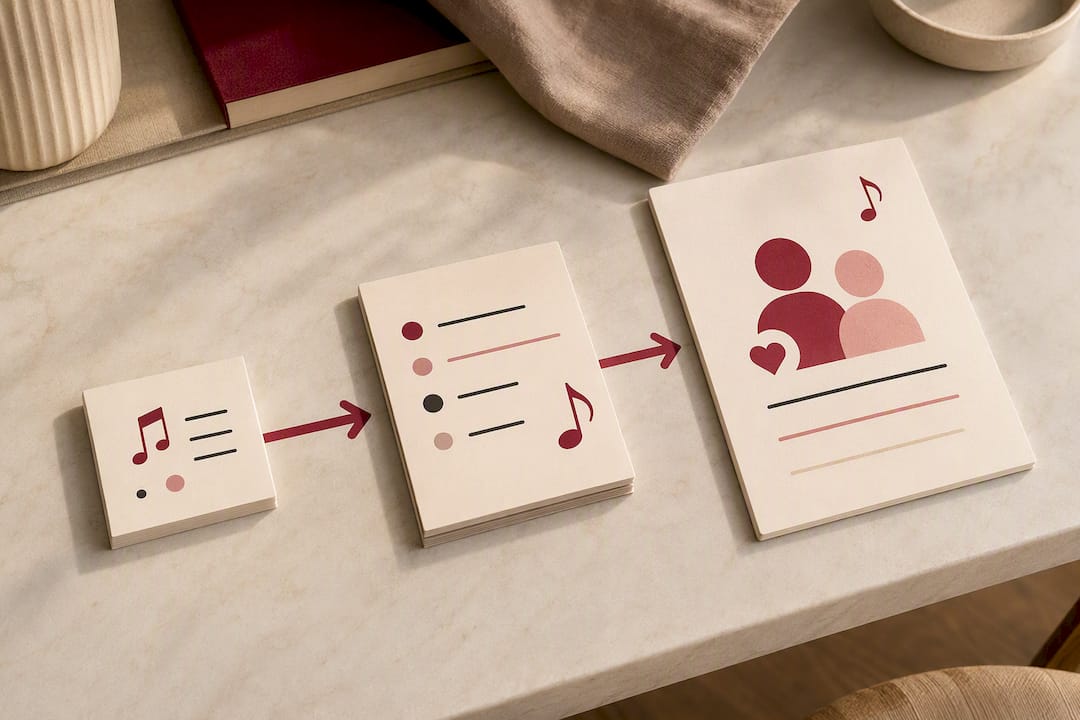
Lesson notes only matter if someone besides you can read and act on them. That’s the entire idea behind an Encore: a short, parent-ready summary that turns “we worked on scales” into something a family can actually use at home.
- Three progress points: what improved, what’s still developing, what’s new this week.
- Three practice tasks, each with a specific number of minutes per day, not a vague “practice more.”
- A one-line preview of what’s coming in the next lesson, so parents know what to expect.
Send the Encore right after the lesson while the details are fresh, and reserve a weekly digest format for families who prefer one consolidated update instead of a message every session. For anything sensitive, a slower learner, a student losing motivation, a scheduling conflict, use a script you’ve written in advance rather than improvising in the moment.
Pro Tip: Keep the practice tasks specific enough that a parent with zero musical background could still enforce them. “10 minutes on the C major scale” works. “Work on scales” doesn’t.
Clearer summaries make parents partners in the process instead of bystanders, and that shift alone tends to show up in how consistently students actually practice between lessons.
How Do Studio Policies Prevent Admin Headaches?
Policies only work if you enforce them the same way every time, and the Suzuki Association’s studio guidance treats consistent enforcement as the foundation of a professional relationship with families, not an optional extra.
- Cancellation and makeups: define how much notice you need and how many makeups you’ll offer per term, in writing, before the first lesson.
- Billing terms: state your autopay default and what happens if a card fails, before it happens.
- Communication boundaries: set specific hours you check messages, and say so in your welcome packet, so families aren’t expecting a reply at 10 p.m.
- Consistent enforcement: have one script ready for the parent who asks for an exception, and decide in advance which exceptions you’ll actually grant.
A studio that enforces its own rules earns more respect than one that writes them and quietly lets every exception slide.
What Does a Realistic Weekly Admin Routine Look Like?
You don’t need daily admin time if you batch it correctly. One 60 to 90 minute weekly block, ideally same day, same time, covers most of what a studio needs: sending invoices, confirming next week’s schedule, adjusting for any cancellations, and prepping upcoming lesson plans.
- Daily: a 10-minute check for anything urgent, a rescheduled lesson, a payment failure alert.
- Weekly: the full admin block for invoicing, confirmations, and planning.
- Monthly or seasonal: re-enrollment pushes, recital logistics, and progress report summaries for families.
Yamaha’s guidance on treating teaching like a small business recommends exactly this kind of batching, plus a defined email window, so families learn when to expect a reply instead of training you to be available around the clock.
| Time window | What happens | Frequency |
|---|---|---|
| 10 minutes | Urgent checks only | Daily |
| 60 to 90 minutes | Invoicing, confirmations, planning | Weekly |
| 1 to 2 hours | Re-enrollment, recitals, reports | Monthly or seasonal |
Setting Up Your Teaching Space for Efficient Workflow
Physical layout matters more than most teachers give it credit for, especially in a small studio room where every extra step between the piano and your teaching materials adds up over a full day of back-to-back lessons.
Position your instrument and your seating so you can see a device or notebook without twisting around, since that’s where lesson notes get written in real time or lost entirely. Keep a dedicated surface, even a small rolling cart, for whatever you use during the lesson itself: metronome, tuner, method books, a tablet for pulling up notes from last week. Nothing should require you to leave your seat mid-lesson.
Separate your teaching zone from your admin zone if your space allows it. A small desk near the door, rather than the piano bench, keeps invoicing and scheduling from bleeding into lesson time and vice versa. If you teach multiple instruments or multiple age groups, color-code storage bins or shelves by category, so a beginner violin student’s rental paperwork never ends up mixed in with your advanced guitar students’ recital music.
Lighting and noise control matter too, particularly if you’re recording video for a parent update or a virtual lesson. A consistent, quiet corner with decent light saves you re-recording something because a sibling wandered into frame or the audio picked up a dishwasher running in the next room.
How Should You Organize and Maintain Your Equipment?
Instruments, cables, stands, and method books multiply fast in a working studio, and audio gear organization becomes a real time sink if you’re hunting for a specific cable or capo before every lesson.
Group equipment by function rather than by where it happened to land. Keep all your tuning tools in one spot, all your rental instruments in another, and all your sheet music storage separate from loose worksheets and theory handouts. Label bins and shelves clearly enough that a substitute teacher, or your own tired brain at 7 p.m., could find anything in ten seconds.
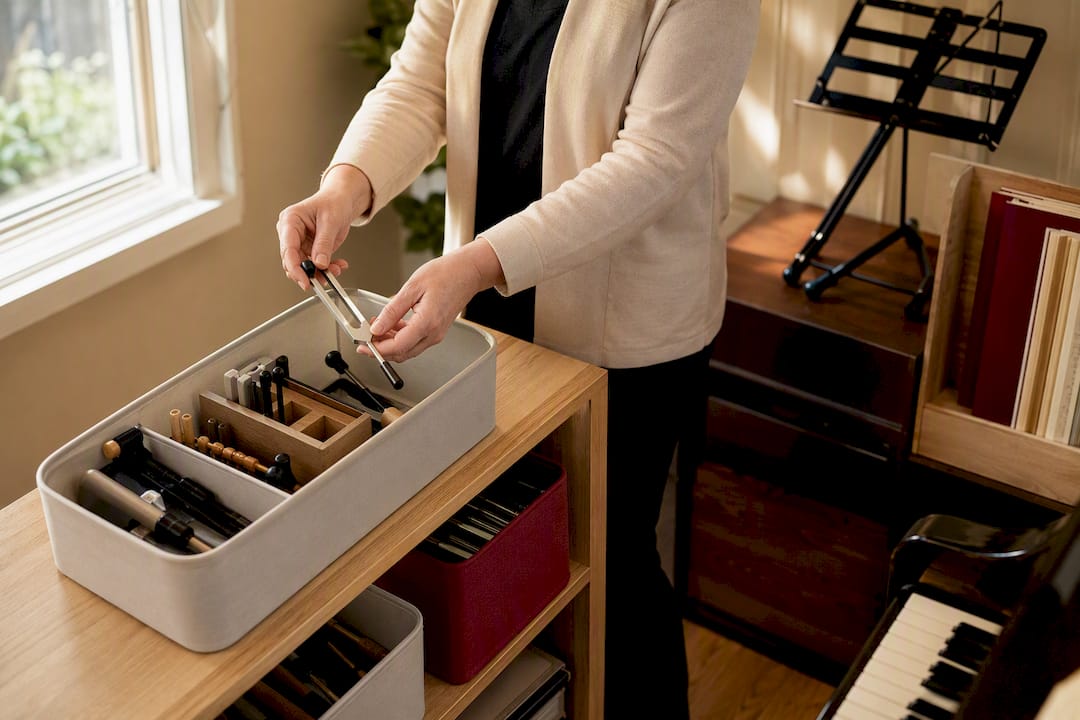
Build a simple maintenance calendar for anything that needs periodic attention: piano tunings, string changes on studio guitars, replacing worn straps or shock mounts on microphones if you record lessons. A recurring reminder on your calendar, checked during your weekly admin block, catches most of this before it becomes an in-lesson problem. Cheap gear that breaks mid-lesson costs you more time than the ten minutes it would have taken to inspect it the week before.
If you loan out instruments or accessories to students, keep a simple checkout log, even a shared spreadsheet works, so you’re not guessing who has the studio’s spare ukulele in October.
How Do You Keep Digital Files and Backups Organized?
Sheet music PDFs, recorded lessons, student contracts, and practice logs pile up fast, and losing any of it, especially signed policy agreements, creates a real problem later.
Set up one main folder structure and stick to it: a top-level folder per student, with subfolders for lesson notes, sheet music, and billing history. Resist the urge to create a new folder system every time you reorganize your thinking. Consistency matters more than the perfect structure.
Back up automatically, not manually. Cloud storage that syncs in the background protects you from a crashed laptop or a lost phone, and it’s worth confirming your backup actually runs rather than assuming it does. A unified platform that stores lesson notes and files in the cloud by default removes this concern almost entirely, since you’re not the one responsible for remembering to back anything up.
Keep signed policy agreements, studio contracts, and payment records in a separate, clearly labeled folder you can find quickly if a billing dispute or makeup-lesson disagreement ever comes up. This is the one category of file where “I’ll organize it later” tends to bite you.
How Do You Organize Teaching Materials and Resources?
Method books, worksheets, technique exercises, and sheet music links scattered across browser bookmarks, a filing cabinet, and a stack on the piano make it hard to find the right resource fast, especially mid-lesson.
Organize materials by instrument, then by skill level, rather than by title or composer. A student working through early intermediate piano repertoire shouldn’t require you to remember the name of the piece; you should be able to browse straight to their level and instrument. Digital sheet music links attached directly to a student’s profile, rather than buried in an email thread, save real time during lesson prep.
Keep a small, curated set of go-to resources rather than an ever-expanding library you never fully use. A few reliable method books and a handful of supplemental worksheets per level beat a folder of 200 PDFs you can’t navigate quickly. Tag or label resources by the skill they reinforce, sight-reading, rhythm, technique, so you can pull the right one when a student is struggling with something specific rather than searching from scratch.
How Do You Track Student Progress and Feedback Over Time?
A lesson note that lives only in your head, or scribbled on a sticky note, disappears the moment you move to the next student. Tracking progress consistently is what lets you notice patterns: the student who’s stalled on the same passage for six weeks, or the one who’s ready to move up a level.
Use one consistent format for every lesson note, regardless of student or instrument. That consistency is what makes patterns visible later, when you’re deciding whether to accelerate a student’s repertoire or slow down and reinforce fundamentals. Recording three quick points every lesson, what improved, what needs more work, what’s next, takes less than two minutes and gives you a real record instead of a vague memory.
Review progress notes periodically, not just when a parent asks. A quick scan of a student’s last month of notes before a lesson takes thirty seconds and often reveals something you’d otherwise miss, like a skill that’s been “almost there” for a month straight. This is also where parent-ready summaries earn their keep: when the same information that lives in your private notes also generates a clean update for families, you’re not duplicating work to keep everyone informed.
How Do You Manage Time Efficiently During Studio Sessions?
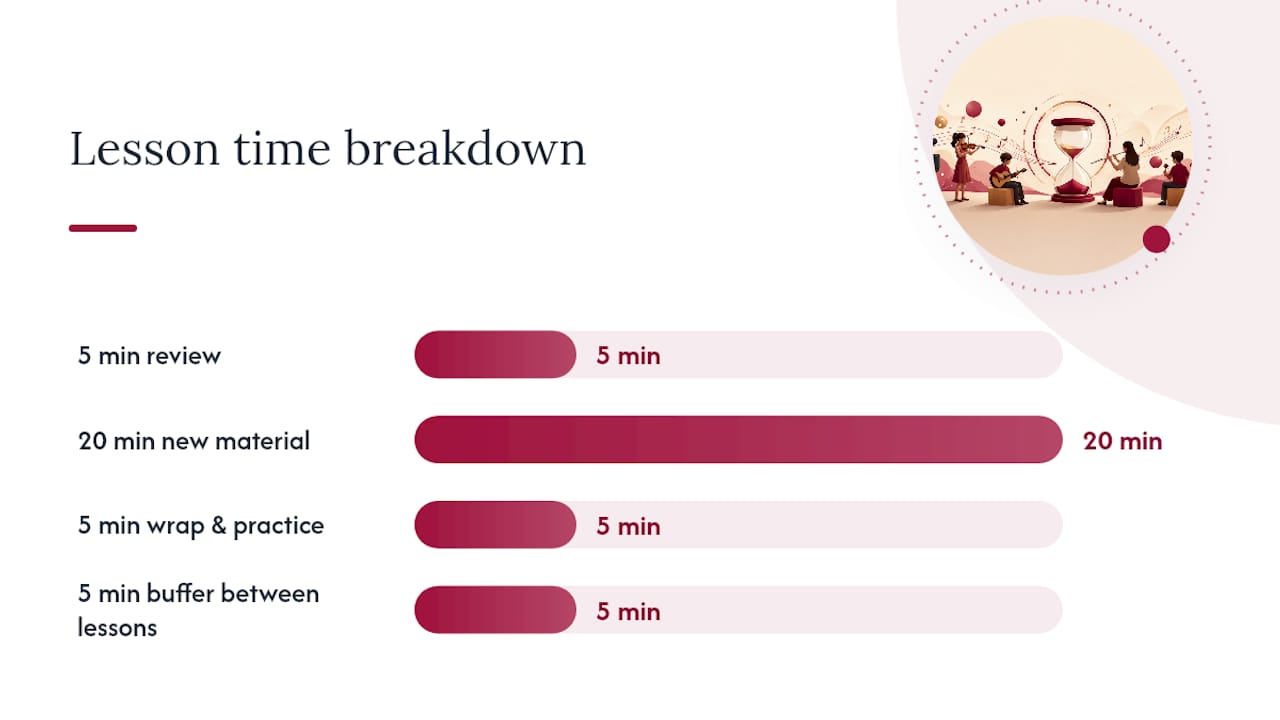
Back-to-back lessons leave almost no margin for error, so the biggest time management music studio session tip is simple: build a five-minute buffer between lessons, even if it means teaching one fewer student per day.
That buffer covers the small tasks that otherwise eat into the next student’s time: jotting the lesson note before you forget it, resetting your teaching space, and taking a breath before the next family walks in. Teachers who skip this buffer often find themselves writing lesson notes hours later, from memory, which is exactly when detail and accuracy suffer.
Structure each lesson with a rough time budget rather than letting it run free-form. A simple internal template, five minutes review, twenty minutes new material, five minutes wrap-up and practice plan, keeps you from spending half a lesson on a tangent, however enjoyable, at the expense of what you actually planned to teach. Keep a visible clock or timer, not to be rigid, but to catch yourself before a session runs long and cascades into every lesson after it.
Run Your Studio Like a Small Business Without Losing the Teaching Heart
The biggest mindset shift isn’t a tool. It’s treating recurring admin as a process to document once, not a crisis to solve every week. A late payment, a reschedule request, a parent asking for an exception: these should have a script and a template already waiting, not a fresh decision every time they come up.
Boundaries protect your teaching energy more than any app does. A defined email window, a real weekly admin block, a clear cancellation policy you actually enforce, these say more to a family about your professionalism than a polished invoice ever will.
Start small. Pick one policy to enforce consistently this month, or automate one sequence, onboarding or billing reminders. You don’t need the whole system overnight. You need the first domino to fall.
— Dave
Where Allegro Music Studio Fits Into This System
Everything covered here, roster, scheduling, lesson notes, billing, onboarding, maps directly onto what a unified platform is supposed to do, and it’s the reason Allegro Music Studio exists in the first place.
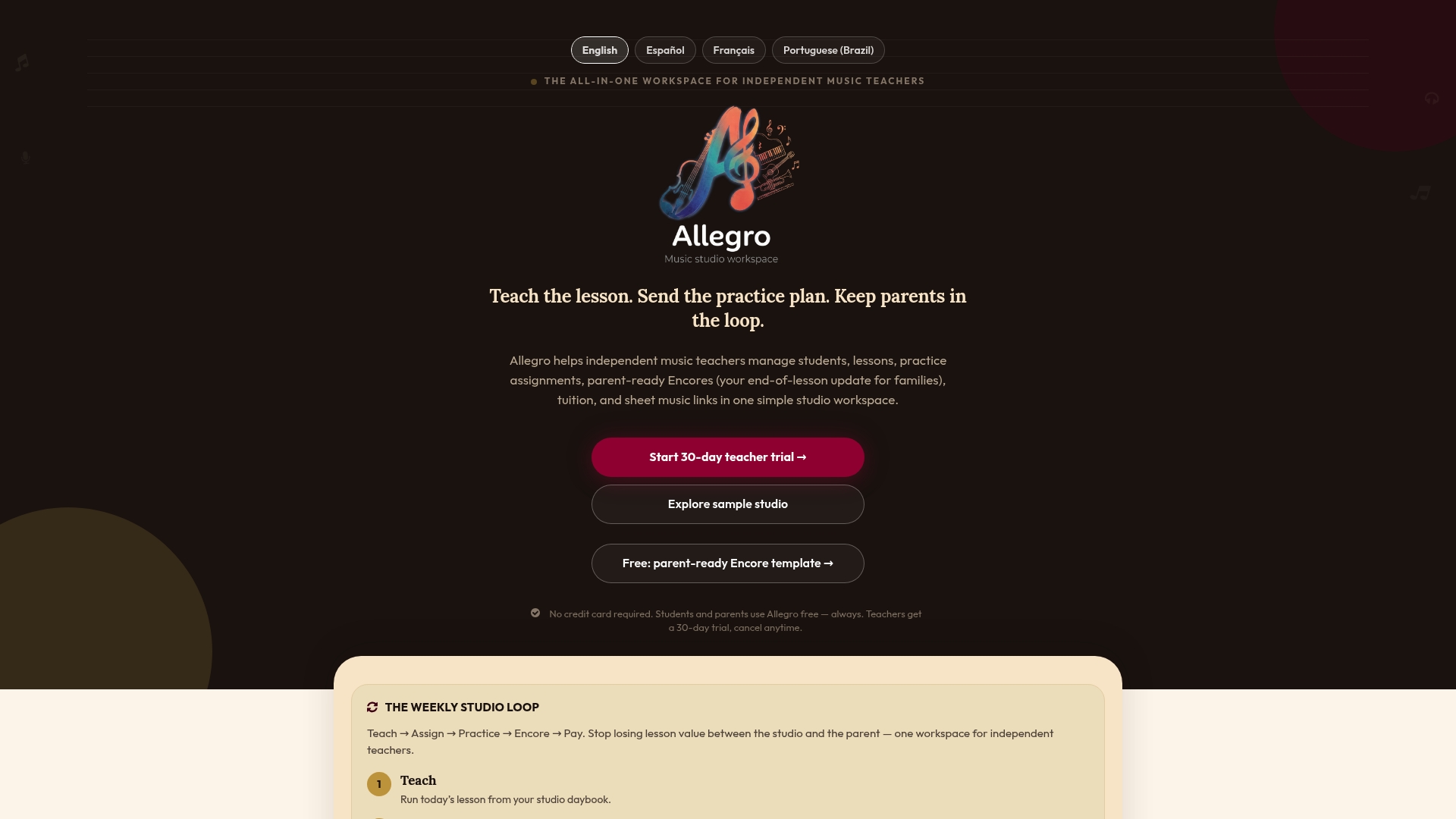
One notable feature is the ability to turn lesson notes into a parent-ready summary automatically, so the two minutes spent jotting what happened in a lesson becomes a clear update a parent can actually use, without writing it twice. Including tuition tracking with invoices and payment links, family communication, and sheet music links in the same workspace helps keep most of the admin categories covered in this article in one place instead of multiple separate apps.
If you’re rebuilding your studio system this month, start with the Allegro landing page and see how the roster, scheduling, and Encore features line up with the eight-step setup above. A 30-day trial gives you enough time to run one full billing cycle and a handful of Encores before deciding if it fits your studio.
Sources
- Reduce Admin Work as a Music Studio Owner: Systems That Work
- Teach Music Like You’re Running a Small Business
- 10 Steps to Setting up a Successful Private Music Studio – Suzuki Association of the Americas
- Starting Your Private Music Studio: A Beginner’s Guide | Thoven
FAQ
What is the fastest way to organize a music studio?
Combine your roster, scheduling, lesson notes, and billing into one connected workspace, then add templates for onboarding and parent updates so the routine tasks run without you rebuilding them every week.
How many hours does studio admin typically take?
Independent studio owners spend 12 to 15 hours a week on non-teaching admin, and automating onboarding and billing sequences cuts a meaningful share of that.
What is an Encore in a music teaching context?
An Encore is a parent-ready summary that Allegro Music Studio generates from your lesson notes, covering progress points, specific practice tasks, and what’s coming next lesson.
How often should I send parents a practice update?
Send an update right after each lesson for time-sensitive notes, and switch to a weekly digest for families who prefer one consolidated summary instead of a message every session.
What studio policies matter most for reducing admin friction?
Cancellation and makeup rules, autopay billing terms, and clear communication hours cover most of the friction points, and consistent enforcement of each one matters more than the wording itself.