Repertoire Tracking That Teaches: Plan, Practice, Reflect for Studios

A repertoire tracker only earns its place in a studio when every entry does more than log a title: it should name the student, the piece, the current status, and the next teaching move. Start now by copying the minimal template below or adding one row for a single student’s current piece, then build the habit from there.
TL;DR:
- Repertoire entries should clearly indicate whether a piece is learned enough for performance, not just studied, to maintain student credibility during auditions.
- A good tracking system includes fields for student details, piece status, practice plans, and reflective notes, which helps target specific learning issues.
- Practice sessions should follow a Plan, Practice, and Reflect cycle, emphasizing unresolved problems and keeping notes brief for maximum usefulness.
- The ideal system depends on access needs and maintenance capacity, with options ranging from printable templates to integrated studio management platforms like Allegro Music Studio.
- Implementing the tracker gradually, starting with minimal fields and scaling up, helps avoid overwhelm and ensures consistent use across the studio.
Table of Contents
- Essential fields and record structure for a studio repertoire tracker
- Turn each repertoire entry into instruction: Plan, Practice, Reflect
- Which formats and tool categories work best
- Quick setup checklist and a minimal template you can copy
- Sample weekly workflow: from lesson to practice to parent update
- How Allegro Music Studio supports this exact workflow
- What a rollout actually looks like in practice
- Try Allegro Music Studio for your repertoire workflow
- Sources
- FAQ
Essential fields and record structure for a studio repertoire tracker
A record is only useful if it can answer three questions on sight: who is working on this, what stage is it at, and what happens next. Studio repertoire lists built for auditions and recitals share a common backbone, according to university repertoire program templates, which recommend capturing instrument or voice range, composer, title, movements, study dates, performance purpose, and any collaborators or accompanists.
Build each entry around these fields:
- Student name and instrument or voice range.
- Piece title, composer, and movements or sections.
- Status: studied, learning, practicing, ready, or memorized, with a last updated date.
- Performance details: date, purpose such as recital or audition, and any accompanist.
- Optional metadata: genre, running time, tempo or key, and a link to the score or a recording.
Keeping “studied” separate from “performed” matters more than it seems. Career guidance for musicians warns against listing works as repertoire unless they were learned to performance level, since a padded list undercuts the student’s credibility at an audition or in a resume. The same discipline protects a teacher’s own records: a piece that was sight read once is not the same as one ready for a stage.
Turn each repertoire entry into instruction: Plan, Practice, Reflect
A repertoire list becomes a teaching tool the moment it carries a plan for what happens next, not just a status label. NAfME’s guidance on organized practice frames this as a three-step loop: Plan, Practice, and Reflect, where each step gets its own short note tied to the piece.
- Plan: write a one-line goal and name the specific problem, such as a slow left-hand passage or an unreliable interval in tuning.
- Practice: record the strategy, whether that is chunking a passage, setting a tempo target, or counting through a tricky rhythm, along with a short suggested duration.
- Reflect: add a brief note after the session, either from the student or the teacher, that feeds directly into next week’s Plan.
This structure matters because it protects against a dashboard that only rewards logged minutes. NAfME’s practice guidance is explicit that the value is in surfacing unresolved problems so a teacher can direct attention where it is actually needed, not in counting hours.
Pro Tip: Keep the Reflect field to one sentence. A note like “still rushing measure 12” is more useful than a paragraph nobody rereads.
Which formats and tool categories work best
The right format depends less on studio size and more on how you access files, whether parents need visibility, and how much time you can spend maintaining the system. Four categories cover most studios:
- Printable template packs: fast to adopt and require no tech, a good fit for solo teachers who prefer paper and keep binders per student.
- Spreadsheets and lightweight databases: fully customizable and exportable, best for teachers who want control over fields and formulas.
- Dedicated practice or repertoire apps: mobile-first, often with PDF score storage and mastery staging, useful when you or your students need access away from the studio.
- Studio management platforms: fold repertoire tracking into scheduling, billing, and parent updates, which suits studios juggling more than a handful of students.
Before picking one, run through a short checklist: who needs to see the data, whether it has to work on a phone, how much reporting you actually want to generate, what it costs, and how many minutes per week you can realistically spend keeping it current. A tool that takes longer to update than the lesson itself will not survive a busy semester.
Quick setup checklist and a minimal template you can copy
Getting started takes less than an afternoon. Gather your current scores and student rosters, decide on a consistent way to write titles and composer names, pick a short set of status codes, and settle on a naming convention for files before you touch a spreadsheet.
Use these fields as your minimal template:
- Student, Instrument, Piece title, Composer, Movements.
- Status, Study start, Last practice date.
- Next action (Plan), Practice strategy, Reflection or teacher note.
- Performance date, Performance purpose, File link.
Name score and recording files the same way every time, for example “LastName_PieceTitle_Movement,” so a search never comes up empty. Once entries are current, filtering by performance purpose or status turns the tracker into a ready-made audition packet or recital program, a use case built into repertoire list templates like StageAgent’s performer template, which groups material by genre and running time for exactly this purpose.
Sample weekly workflow: from lesson to practice to parent update
A repertoire tracker earns its keep when it shapes what happens before, during, and after each lesson, not just what gets filed afterward, as explained in this Music Class Activities for Kids: A Parent’s Guide.
- Pre-lesson: scan each student’s row to decide the lesson’s priority based on status and the last Reflect note.
- During the lesson: update the status, write the new Plan and Practice steps, and draft a one or two sentence, parent-friendly summary of what happened.
- Post-lesson: send that summary to the family, log any practice recordings the student submitted, and add your own reflection note.
- Ongoing: use the accumulated evidence, not a hunch, to decide when a piece moves to “ready” or earns a spot on a recital or audition list.
This loop keeps the tracker from becoming a static archive. Every entry either moves a piece forward or flags exactly why it hasn’t, which is the information a teacher actually needs at the next lesson.
How Allegro Music Studio supports this exact workflow
The Plan, Practice, Reflect loop described above is easier to sustain with a system built for it. Allegro Music Studio turns lesson notes directly into practice plans and parent-friendly summaries called Encores, so the update a family receives is the same record a teacher used to plan the lesson.
Because lesson records, repertoire entries, and parent communication live in one workspace, teachers spend less time re-typing the same information into an email or a separate spreadsheet. A repertoire entry, its Plan, and its Encore stay linked rather than living in three different tools, which is the gap that spreadsheets and printable packs tend to leave open.

What a rollout actually looks like in practice

Start smaller than feels necessary. Capture only the minimal fields for a few weeks and resist adding columns until you can name a decision they’d change.
A simple rollout: week one, collect and standardize titles and student data; week two, pilot with three or four students; week three, refine fields based on what you actually used; week four, roll it out studio-wide. The common traps are overcomplicating fields nobody fills in, letting score files drift out of sync with the tracker, and forgetting that parents need to see something too.
— Dave
Try Allegro Music Studio for your repertoire workflow
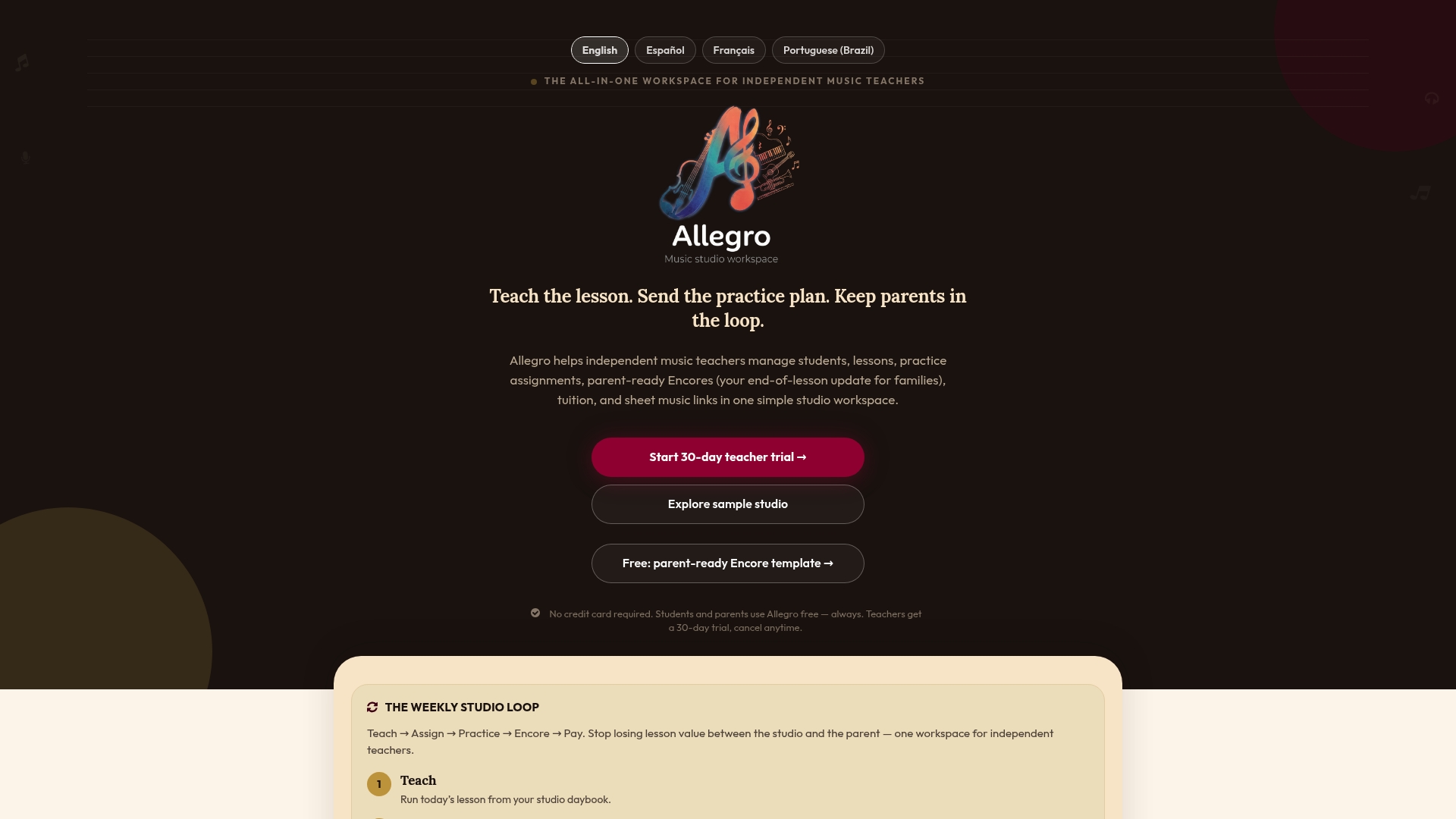
Once you’ve tested the minimal template and felt where it gets tedious, the friction is usually the same: switching between a spreadsheet, a messaging app, and a separate note for parents. Allegro Music Studio keeps the Plan, Practice, and Reflect loop, the repertoire record, and the parent update in one place, so an Encore goes out the same moment you finish the lesson note.
The Solo and Studio plans are built around that single workspace, with Studio priced at $39 per month for growing rosters. Start with a 30-day trial to see whether it replaces the spreadsheet you’ve been patching together, and keep the paper template as a backup for the days you teach without a laptop open.
Sources
- Effective and organized learning processes in music practice (NAfME)
- Division Jury Comprehensive Repertoire List name instrument/vocal range (UTC template)
- Performer repertoire list template (StageAgent)
FAQ
What is the 35 year rule in music?
This is not a term used in music education or repertoire tracking, and no standard music organization defines a “35 year rule.” If you encountered this phrase in another context, it likely refers to copyright or contract law rather than repertoire management.
What is the best app for tracking music practice?
The right choice depends on whether you need mobile access, parent visibility, or integration with billing and scheduling. Studio management platforms like Allegro Music Studio combine repertoire tracking with lesson notes and parent Encores in one workspace, which suits teachers who want those pieces connected rather than separate.
What is a music repertoire?
A music repertoire is the collection of pieces a musician has learned or performed, typically organized by composer, title, and preparation level. Studio repertoire lists distinguish between works currently being studied and those ready to perform, since only performance-ready pieces belong on an audition or recital list.
What does tracking mean in music production?
In production, tracking refers to recording individual instrument or vocal parts onto separate tracks in a session. That is a different use of the word from repertoire tracking in a teaching studio, which refers to logging what a student is learning, practicing, and preparing to perform.
How often should I update a student’s repertoire record?
Update the status and Plan fields at every lesson, since that is when new information about the piece’s progress appears. A quick Reflect note after practice sessions between lessons keeps the record current without adding much time to your week.